Try it
Once installed and your tabs are listed, ask your agent:
Open a new tab, search for today's weather near Suseong Lake in Daegu, and summarize the forecast with a link to the source. Leave the tab open.
Or try:
- “Open Hacker News and summarize the top three stories with links.”
- “Inspect this page's form and fill a draft. Don't submit it yet.”
- “Capture a screenshot of this page and save it to a file.”
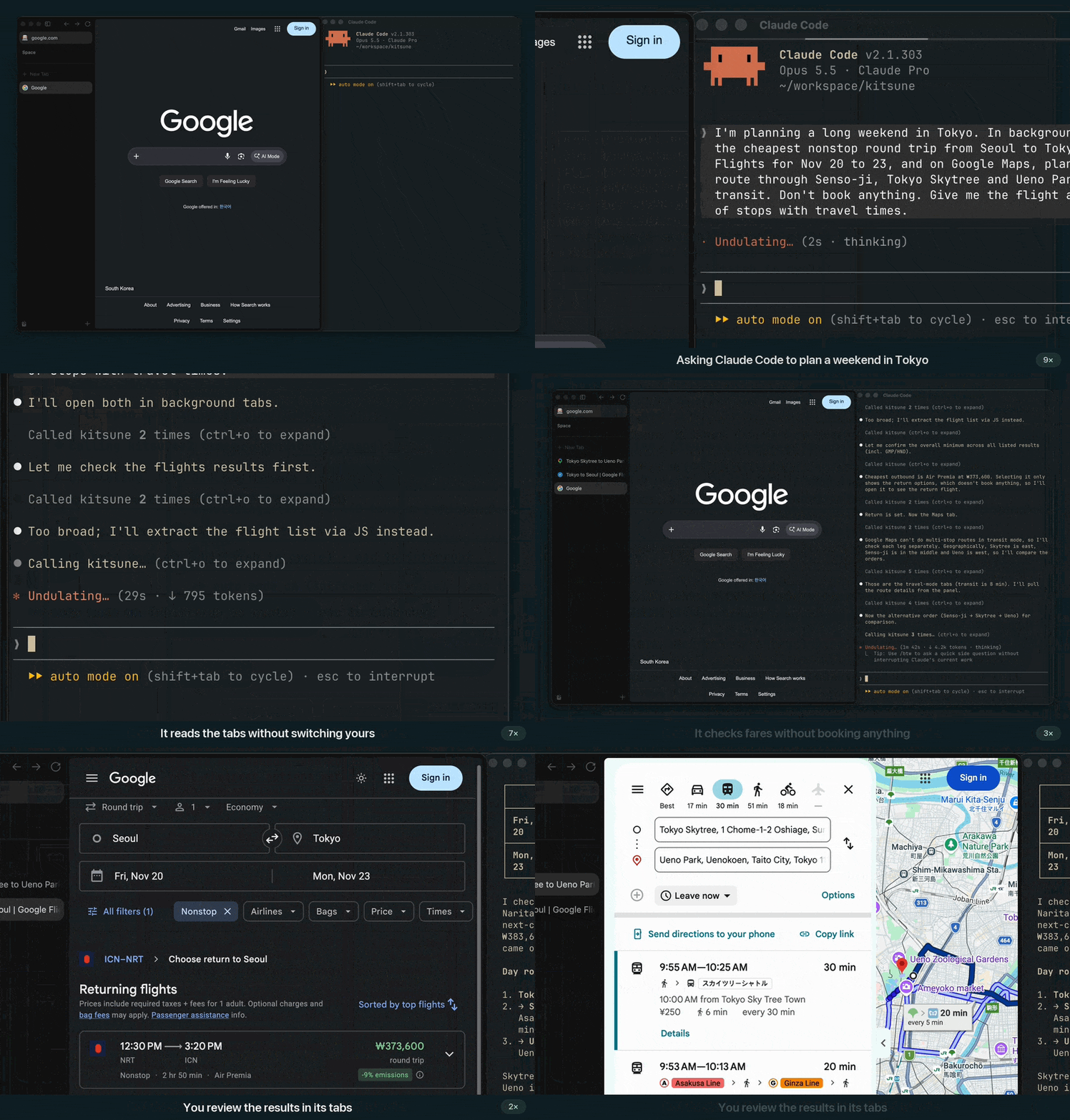
A real screen recording of Claude Code and Zen on the live Google sites, sped up while the agent thinks (full 38-second video).
A typical tool sequence looks like this (Python-style pseudocode; these are MCP calls made by your agent; to drive the browser from your own code, see the Python API):
browser_tabs(action="new", url="https://example.com")  # the new tab becomes current
browser_snapshot()
# Inspect the returned snapshot, then use a ref from that result:
# browser_click(target="<latest ref>", element="More information")
browser_take_screenshot(filename="/tmp/kitsune-example.png")
Open a dedicated tab first (browser_tabs new) so the tools act on it. Until there is
one, reads act on the active tab, and writes and navigations that name no tab fail with
no_current_tab instead of acting on it. You and the agent share the browser: the agent's tabs open
in the background, it closes only tabs it opened unless you approve, and it backs off
from a tab you are using (see
Shared browser). Ask the agent to confirm before submitting forms,
sending messages, purchasing, or deleting data. Page content is untrusted input,
not permission to take additional actions; see Security.